How to Send a Valheim World File to a Friend (1.0 Update)
Where does Valheim store your world save, and how do you send it to a friend so they can host? Valheim 1.0 changed the format - here's what to copy.
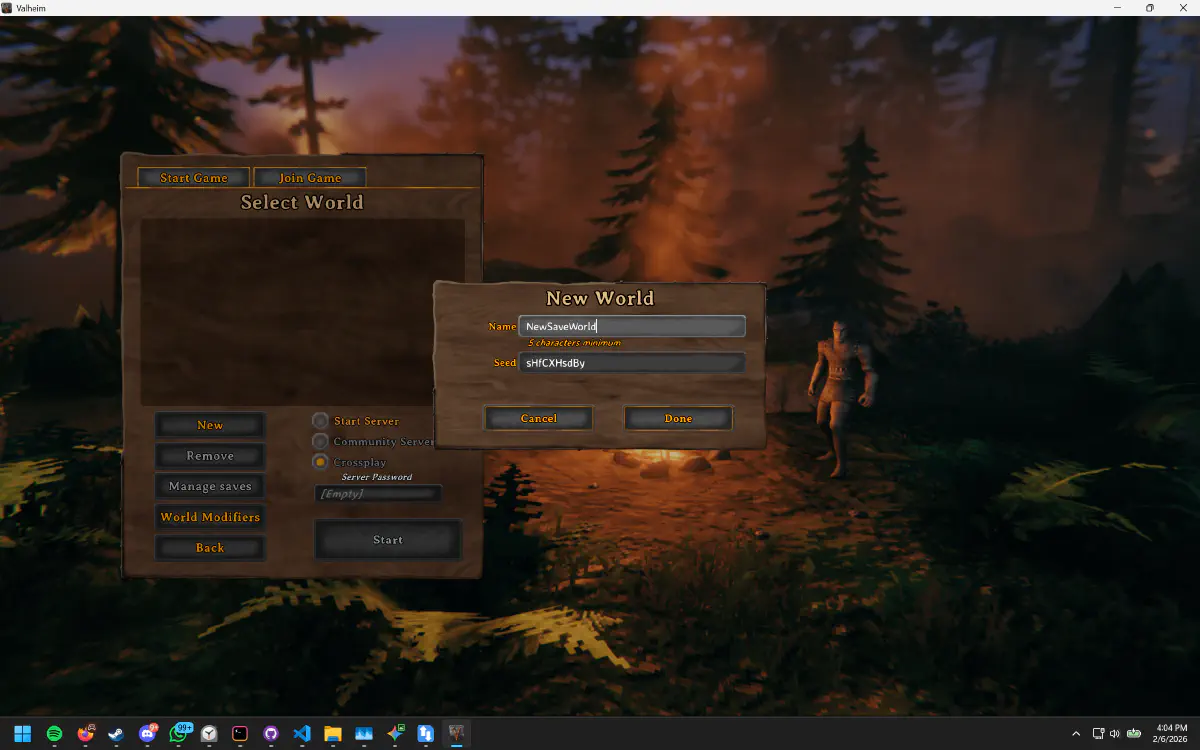
You and your Viking crew have spent weeks conquering the meadows, venturing into the Black Forest, and preparing for your first boss fight in Valheim. Your longhouse is built, the smelters are running, and everyone has their role. Then the host disappears for a week, and your entire Viking afterlife is on pause.
Valheim’s co-op is exceptional, but it comes with a familiar limitation: the world save belongs to whoever hosts. When they are offline, so is your world.
Valheim 1.0 changed how that save is stored, which means most of the world-sharing advice written before September 2026 is now wrong. This guide covers where the world actually lives, what the new format means for copying it, and how to share it so anyone in the group can host.
What Changed in Valheim 1.0?
Valheim left Early Access on 9 September 2026, bringing the Deep North, PS5 and Switch 2 versions, and crossplay across every platform.
The change that matters for save sharing is quieter: Valheim replaced the old two-file world save with a folder per world. World data is now split into chunks so the game only rewrites the parts that changed, rather than saving the entire world every time.
If you have read a guide telling you to copy “the .db and the .fwl” - that was correct before 1.0, and it is not how a current world is stored.
Where Is the Valheim World Save Located?
Worlds you host yourself live in worlds_local. On Windows, paste this into File Explorer’s address bar:
%USERPROFILE%\AppData\LocalLow\IronGate\Valheim\worlds_local
On Linux and Steam Deck (native build):
~/.config/unity3d/IronGate/Valheim/worlds_local
Note that LocalLow is not the same folder as %APPDATA% - it sits beside Local and Roaming, and typing %APPDATA% will drop you in the wrong place.
What Is Inside a Valheim 1.0 World Folder?
Each world is now its own folder named after the world, containing:
_main.N.fwl2- the world metadata, replacing the old.fwl_main.N.db2- the world database, replacing the old.db_main.N.chunks- the index of terrain chunksXX_XX__X_X.chunk- the terrain chunk files themselves, many of them_main.N.ok- a marker written once a save has finished cleanly
The N is a generation counter that increases every time the world saves, and Valheim keeps several generations side by side. This is why you cannot cherry-pick a file or two: copy the entire world folder, or the generation the game picks will be missing the chunks it expects.
What Happens to a World Made Before 1.0?
The first time you load a pre-1.0 world, Valheim takes a backup of the original .db and .fwl pair and then converts the world into the new folder format. Your progress carries over - nothing is destroyed by updating.
Two things to know:
- The conversion is one-way in practice. Once a world has become a folder, getting back to the old pair is not something the game offers you.
- On a large world it can take several minutes, with no obvious progress indicator. Let it finish rather than killing the game.
What About Character Files?
Characters are stored separately, in characters_local beside worlds_local, and they stay on each player’s own machine. Your Viking, their skills, and their inventory travel with you into whatever world you join.
That is genuinely useful here: only the world needs to move between machines. Nobody has to hand over a character file, and nobody loses skill progress when hosting changes hands.
How to Send a Valheim World to a Friend Manually
- Make sure Valheim is fully closed on the machine you are copying from, so a save is not mid-write.
- Open
%USERPROFILE%\AppData\LocalLow\IronGate\Valheim\worlds_local. - Find the folder named after your world and copy the whole folder, not individual files.
- Zip it, and send it to whoever is hosting next.
- They unzip it into their own
worlds_local, keeping the folder intact. - They launch Valheim, pick the world from the list, and host.
It works. It is also entirely manual: someone has to remember to do it after every session, and the moment two people host from copies made at different times, one evening’s progress quietly disappears.
One new gotcha: everyone needs to be on 1.0. A converted folder world will not load on a client that has not updated yet, and a client still on the old version keeps its worlds as loose .db and .fwl files instead of folders.
How SaveSync Handles It Automatically
SaveSync keeps the world folder synchronized across every PC in your group - all of it, chunk files included, after every session. The next person to play pulls the current world and hosts. Your base stays built, your map stays revealed, and your boss progression stays intact.
How to Set Up SaveSync for Valheim
Every PC that might host needs SaveSync installed. If your world shows a cloud icon in Valheim, first open Manage saves on the character select screen, go to Worlds, select it and click Move to local - SaveSync works from worlds_local.
- Click Valheim in the list on the left. You’ll see Valheim’s save management page.
- Click “+ New Save” in the top right.
- Select your world from the dialog of available worlds.
- Click “Create Save”. The save starts syncing.
- Wait for the green checkmark.
- Click the share icon on your save.
- Search for your friend’s Steam username and click Share.
- Your friend clicks “Activate” on the shared save, which shows as shared by you. The world is ready, they can host it, and it syncs automatically after that.
SaveSync also keeps a full save history: who uploaded which save and when, with the option to revert to any earlier one. Taking turns every week? The Valheim host rotation guide covers how to run it.
Can a PS5 or Switch 2 Friend Join Our World?
Yes - 1.0 brought PS5 and Switch 2 onto Valheim’s crossplay network alongside PC and Xbox, and a session still holds up to ten players regardless of what they are playing on. Crossplay sessions use a short join code shown in the pause menu, which changes every time the session restarts.
What crossplay does not give you is a shared save. Worlds and characters stay tied to the platform they were made on, and console players cannot host a dedicated server. So in a mixed group, hosting duty can only rotate between the PC players - the console players join whoever is hosting tonight. That is exactly what SaveSync is for: keeping the world current across the PCs, so there is always someone able to open the gate.
The full breakdown of what does and does not carry across platforms is in the Valheim crossplay guide.
SaveSync vs. the Alternatives
vs. renting a dedicated server: A rented server keeps the world up permanently and is the right answer for a large or always-on group. It also costs money every month and needs maintaining, which is a lot of overhead for four friends playing two evenings a week.
vs. copying folders manually: Doable, but it is on you to remember it every session and to keep track of who has the newest copy. Getting that wrong costs you a night’s progress.
vs. waiting for the host: Valheim rewards short sessions - smelt some ore, tend the crops, scout one new biome. That should be possible whenever you have an hour free, not only when one specific person does.
Want a Dedicated Server Instead? Try the ServerSync Beta
Some groups would rather nobody had to host at all. Valheim ships a free dedicated server, but running it yourself usually means a SteamCMD install, launch flags and forwarding UDP ports 2456-2457 on a router you may not control.
ServerSync is our second app, built for exactly that. It runs a Valheim dedicated server on a PC you already own:
- No port forwarding and no config files. Pick Valheim, name the server, launch it.
- Bring your current world. It converts a local world you have already played, so nothing is lost moving to a server.
- Free, with optional premium features. It is in beta now - ask for a key in ServerSync’s Discord.
Not sure you need one? Valheim co-op without a dedicated server weighs the two.
Valhalla Waits for No One
The Viking afterlife should not have a gatekeeper. With SaveSync, your shared world is always available to any PC in your group, whoever happens to be around tonight.
New to the tool? Start with Getting Started with SaveSync. Deciding between syncing and renting a box? See SaveSync vs. dedicated servers. And if your usual host is away tonight, read how to continue a Valheim world when the host is offline.