Subnautica 2 Save Sharing Guide - Co-op Without Waiting on the Host
Does Subnautica 2 have dedicated servers? No - co-op is host-based for up to 4 players. Here's how multiplayer and saves work, and how to share a save so anyone can host.
Subnautica 2 brings co-op to the alien ocean for the first time in the series. Diving with friends — building bases together, splitting the scan-and-craft loop, hunting Leviathan-class threats as a team — is the experience the original game never had. But co-op brings a familiar problem with it: the world save lives with the host.
When the host is busy, offline, or just not in the mood, the rest of the group is stuck on the surface. This guide covers exactly how Subnautica 2 handles save sharing, the difference between the built-in cloud upload and SaveSync, and how to keep your dive going regardless of who is around.
Does Subnautica 2 Have Dedicated Servers?
No - Subnautica 2 has no dedicated servers. Co-op is peer-to-peer and host-based: one player hosts the world and up to three friends join their session (four players total), with crossplay between PC and Xbox. Unknown Worlds has confirmed there are no dedicated servers - multiplayer runs entirely through the host’s game.
That design is the root of the host problem. Because the world lives in the host’s save, there is no always-on server keeping it available - when the host logs off, the world goes with them. Some third-party companies advertise “Subnautica 2 server hosting,” but those are just rented always-on PCs relaying a peer-to-peer host, not official dedicated servers.
The good news: you do not need a server at all. Subnautica 2 lets you move a save between players, so anyone in your group can host - which is what the rest of this guide is about.
Where Are Subnautica 2 Saves Stored?
Subnautica 2 keeps your saves locally on each machine, with a backup to Steam Cloud (per Unknown Worlds’ support docs). On Windows the save folder is typically located at:
%LOCALAPPDATA%\Subnautica2\Saved\SaveGames\
Because co-op stores everyone’s progress inside the host’s save, getting that save onto another player’s machine is the whole game when it comes to playing without the original host. Subnautica 2 has a built-in way to do it - covered next - but it is a manual, one-at-a-time handoff.
The Host Problem in Subnautica 2 Co-op
Subnautica 2’s co-op session ties the world to whichever player started it. Other players join through the host’s session. Their submarines, scanned fragments, and base modules all live inside the host’s save file — not their own.
When the host stops playing, the world is unreachable. Your prawn suit, your scanner room, your base full of decoration items — all of it sits frozen until the host comes back.
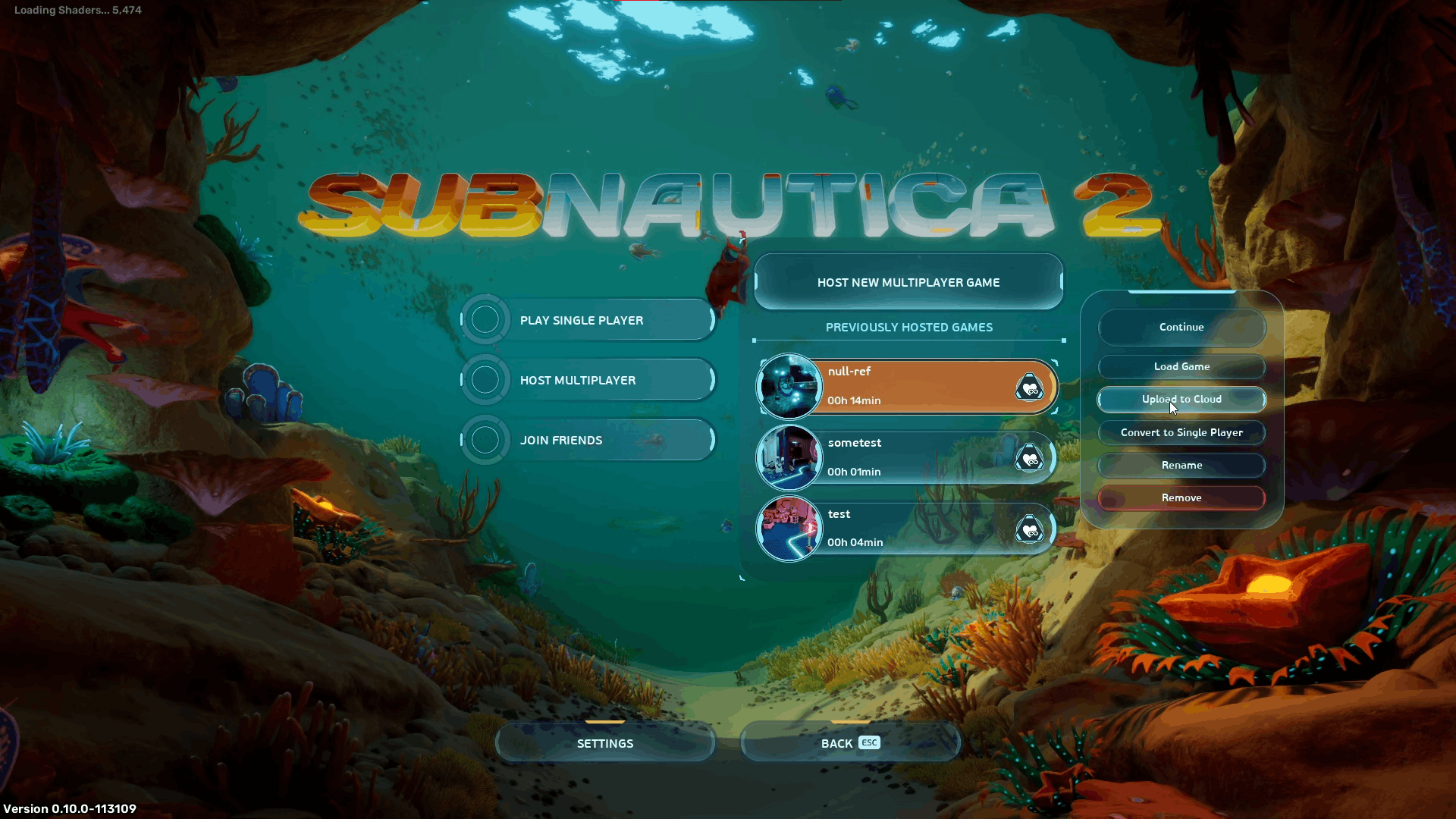
The game ships with a workaround: an Upload to Cloud button that hands out a key any friend can use to import the save and host it themselves. It works, but it is a manual back-and-forth every session. Upload, copy the key, send it through Discord, friend imports, friend plays, friend uploads again, friend sends a new key, you import. Every. Single. Time.
How Subnautica 2’s Built-In Cloud Upload Works
Built into the game:
- Select your save and click Upload to Cloud.
- The game returns a key. Copy it.
- Send the key to your friend.
- Friend opens the game, clicks Import Save, pastes the key, confirms.
- Friend hosts the world.
- When the friend stops playing, they upload to cloud, send you a new key, you import.
This works for two players passing a save back and forth. It becomes painful with three or four players because everyone has to track which key is current, when it was generated, and whose turn it is to host. One stale key and someone overwrites the latest progress with an older snapshot.
How SaveSync Handles It Instead
SaveSync replaces the manual key exchange with a one-time share. After it is set up, syncing is invisible — you just play.
- Open SaveSync and click Subnautica 2 from the list on the left.
- Click + New Save (top right). A dialog shows your available Subnautica 2 saves.
- Pick the save you want to share and click Create Save.
- Wait for the green checkmark — the save is now synced.
- Click the share icon on the save.
- Search for your friend’s Steam username and click Share.
- Your friend opens SaveSync, sees the shared save tagged as shared by you, and clicks Activate.
That is the full setup. Once activated, the save is part of your friend’s library too. Either of you can host the world, and SaveSync keeps every machine on the latest version automatically. No keys, no Discord pastes, no version tracking by hand.
Save History: Who Uploaded What and When
The other thing SaveSync gives you that the built-in cloud upload does not: a full history of every save state, with timestamps and the player who uploaded it.
That solves a real problem. If a teammate accidentally drops your Cyclops into the void and uploads the world right after, you do not have to argue about whose mistake it was — you just open the history and roll back to the previous snapshot. Three players, four players, a rotating group of friends who pop in and out: the history tells you exactly who did what.
Setting Up SaveSync for Subnautica 2
- Install SaveSync from Steam.
- Launch SaveSync and select Subnautica 2 from the list on the left.
- Click + New Save and pick the save you want to share.
- Wait for the green checkmark.
- Click the share icon, search for your friend’s Steam username, and click Share.
- Have your friend open SaveSync, find the shared save in their game list, and click Activate.
That is it. From here on, whoever hosted last syncs automatically when they close the game. Whoever opens the game next gets the latest world.
For a step-by-step walkthrough with screenshots, the SaveSync Steam guide covers both the built-in cloud upload flow and the SaveSync flow side by side.
SaveSync vs. Manual Cloud Keys
Manual cloud keys:
- Free, built into the game.
- One-to-one handoff, one upload at a time.
- You and your friends manage version tracking by hand.
- No history — last upload overwrites the last upload.
- Painful for groups of three or four.
SaveSync:
- One-time setup, then invisible.
- Works for any size co-op group.
- Full save history with timestamps and uploader.
- Roll back to any earlier state.
- Same install covers 27+ other co-op games on top of Subnautica 2.
For solo co-op pairs who play once a month, the built-in upload is fine. For a regular group, the manual workflow is the bottleneck — not the game.
FAQ
Can I play Subnautica 2 co-op when the host is offline?
Not by default. The world save lives with whoever hosted it. Subnautica 2 includes an Upload to Cloud option that generates a key — any friend who imports the key can host the world. SaveSync automates that same handoff so you do not have to copy and paste keys after every session.
What is the Upload to Cloud key in Subnautica 2?
When you upload a save to the cloud, Subnautica 2 returns a short key. Share it with a friend, they paste it into Import Save, and they can host the world from their machine. The key is a snapshot, not a live link — every new upload generates a new key.
How is SaveSync different from the built-in cloud upload?
SaveSync removes the manual key step. Once you share a save with a Steam friend, they activate it once and every future sync flows automatically. It also keeps a full history of every save with timestamps and uploader, so you can roll back if something goes wrong.
Does sharing the save let my friends mess up my single-player world?
No. You share a specific save, not your entire game folder. Your other saves stay private. If you want a clean backup of the shared save, SaveSync’s history view lets you revert to any earlier snapshot.
Do I need a dedicated server to play Subnautica 2 with friends?
No. Co-op runs through the host player’s session. The bottleneck is host availability, not server hardware. Save sharing lets any player host, which removes the need for a paid dedicated server entirely.
Dive Whenever You Want
The ocean does not care which one of you is online. With SaveSync, neither does the save file. Pick up SaveSync on Steam for a one-time $5.99 — covers your Subnautica 2 co-op group and every other supported game on the same install.